
Today I tell you about Google Analytics. Google Analytics is a free product that tracks your website and gives detailed statistics about visitors to your website. For example, Analytics can show you how people found your site, how they explored it, and how you can enhance their visitor experience. With this information, you can improve your website return on investment, increase conversions, and make more money on the web. To install Google Analytics on Blogger, you need to follow these steps:
Info: You can sign in with your Blogger account, that is also a Google Account.
2- Now you've signed in but you have to configure settings, so Google Analytics will ask you to sign up so click on that button.

3- On the next page, you'll be asked to enter some General Information of your website. First, you'll need to add your blog URL like I've added mine here:

Warning: Don't add http:// because that is already included.
4- Now enter an Account Name (whatever you like), your Time zone country or territory and Time zone of your area and click Continue to proceed.
5- Now, you need to add your Contact Information. Fill all the boxes and click Continue to go to the next step.
6- We're almost done now you need to Accept User Agreement by checking the box located at the bottom of this huge agreement.

7- Now, your Google Analytics account is created and you need to add the Tracking Code on your website. You'll see that there are two tracking codes available but you need to copy the New Tracking Code (ga.js) because it has more features than the other.

8- Once you've copied that code click Finish and come back to your Blogger account and go to Layout | Edit HTML section.
Remember: You need to add this code in that blog which you've added in step 3.
9- In Edit HTML section, search (Ctrl+f) for tag and paste the code right before this tag.
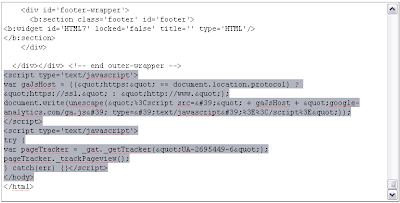
10- Click on Save Template button to save your template.
11- Your Tracking Code is now installed and you'll receive first stats almost after 24 hours.
12- To see these reports, you need to sign in to your Analytics Account and click on View Reports link. Once you're viewing reports, there are many graphs and links representing different stats. Google Analytics Official Help provides a simple tutorial to understand the stats.
How to Understand the Google Analytics Stats? (Courtesy: Google Analytics Help)
Here is a detailed view and tutorial of Google Analytics Dashboard:

and here is the detail:
1. Click this link to navigate back to your Analytics Settings page, so you can get an overview of and edit all your Analytics accounts and profiles. From there, you can navigate to the Profile Settings page, where you can view your tracking code, and create goals and funnels.
2. You can also navigate to any account using this pull-down menu.
3. The 'Settings' page is different from the “Analytics Settings” page. Here, you can set the email address associated to your account, your account language, and your email notifications settings.
4. The 'My Account' link takes you to a page listing all your Google Accounts.
Learn more about Google Accounts settings page.
5. Click here to go to our Google Analytics Help Center. It searches over 30,000 pages of Google Analytics support content from the Help Center, Google Analytics Help Group, and the web.
6. Always remember to sign out of your account when you’re done!
7. Visitors
This section provides information on visitor interaction with your site, the type of visitors, and information about how they are viewing your site.
* Benchmarking, Map Overlay, New vs. Returning, Languages, Visitor Trending, Visitor Loyalty, Browser Capabilities, Network Properties, User defined
8. Traffic Sources
Find out how different offline or online sources sent traffic to your site. View which sources are driving the most traffic to your site and spot trends from the provided graphs and charts.
* Overview, Direct Traffic, Referring Sites, Search Engines, All Traffic Sources, Keywords, AdWords (lists AdWords-specific information like AdWords Campaigns and Keyword Positions), Campaigns, Ad Versions
9. Content
These reports are all about the pages in your site and how visitors interacted with each one. Use the data here to find time on page, landing and exit page information, and a navigation summary for pages. Another free Google product, Website Optimizer, has been useful for advertisers looking to increase conversions by testing different versions of their content. You can learn more about it here.
* Overview, Top Content, Content by Title, Content Drilldown, Top Landing Pages, Top Exit Pages, Site Overlay, Site Search, Event Tracking (in Beta)
10. Goals
If you’ve set goals for your Analytics account, then you should see data in these reports.
Learn how to set up goals and funnels .
* Overview, Total Conversions, Conversion Rate, Goal Verification, Reverse Goal Path, Goal Abandoned Funnels, Funnel Visualization
11. Ecommerce
For Ecommerce site owners, these reports give extremely helpful information on the revenue, transaction, and ecommerce activity on a site. There’s a whole section on product performance to view your top-selling product, right down to the SKU number.
* Overview, Total Revenue, Conversion Rate, Average Order Value, Product Performance (Product Overview, Product SKUs, Categories), Transactions, Visits to Purchase, Days to Purchase
12. Design a custom report using the metrics and dimensions you want to see. For more information, please read our Quick Start Guide.
13. Settings – Advanced Segments and Email
Advanced Segmentation: Slice and dice your data in the way you want to see them. Click ‘Advanced Segments’ to create these segments and apply them to your reports. Read through our tutorial and view our video on this powerful feature here.
Email: Manage scheduled email reports. In order to learn how to modify them, please read this article.
14. Click on any of these help resources to get information on the specific report you’re viewing, tips on how to interpret and use the information for your campaign, or learn what other people’s common questions are.
15. Select from this pull-down menu to jump to another Analytics account.
16. Apply the advanced segment you created to a report and compare it side-by-side to other graphs. See number 13 to learn more about advanced segments
17. Select a date range through a calendar or timeline slider to graph your report data by clicking on the arrow. You also have the option compare to past data in this section. Instructions on how to use this feature can be found here.
18. Graph your report by day, week, month, or hour (where available). Learn more.
19. The selected date range, graph by view, advanced segment or metric is viewed as a graph here.
20. Get at-a-glance views of your account’s key metrics here.
21. Add or delete report snapshot modules to your dashboard. To add a module, go to your desired report and click ‘Add to dashboard’ at the top of your report. To delete one, click the ‘X’ on the upper right-hand corner of every module in your Dashboard report.

